
VR Payment Gateway Integration
VR Payment, a leading German payment service provider under the Volksbanken Raiffeisenbanken cooperative, offers robust solutions for online and in-person transactions. Supporting payment methods like credit/debit cards (Visa, MasterCard, etc.), PayPal, SEPA Direct Debit, and local European options (e.g., Sofort, giropay), VR Payment operates in multiple countries with a focus on security via 3D Secure and flexible APIs. It’s ideal for businesses seeking seamless integration into e-commerce platforms with features like tokenization, subscriptions, and pre-authorizations.
This guide walks you through integrating VR Payment into your application, from account setup to live deployment.
Step 1: Log in or Sign Up
- Visit VR Payment: Go to VR Payment and click Contact or Register to initiate account creation (direct signup may require contacting their sales team), or Log In if you have an account.
- Account Creation: Request a merchant account by providing your business email, company details (e.g., name, address, country), and intended use case (e.g., e-commerce). VR Payment typically assigns credentials after a consultation.
- Email Verification: Check your inbox for a confirmation email and follow the instructions to activate your account.
- Dashboard Access: Log in to the VR Payment Merchant Portal to manage payments, API keys, and settings. A test account is provided initially for Sandbox testing.
Step 2: Set Up Your Account
Before processing payments, configure your VR Payment account:
- Complete Your Profile:
- In the Merchant Portal, go to Settings > Company Details.
- Enter your business information: legal name, address, VAT ID (if applicable), and website URL (required for live transactions).
- For individual merchants, provide personal details.
- Business Verification (Required for Live Mode):
- Navigate to Settings > Verification.
- Submit documents like a business registration certificate, ID, and bank details (specific to your country, e.g., Handelsregister in Germany).
- Verification takes 1-3 business days; you’ll be notified via email upon approval.
- Add a Settlement Bank:
- Go to Settings > Bank Accounts.
- Add your bank details (e.g., IBAN for SEPA) for payouts. A test deposit may be required for verification.
- Sandbox Mode: Use the Sandbox environment immediately with test credentials to simulate transactions without verification.
Step 3: Obtain API Credentials
VR Payment provides credentials for integration:
- Access Token: A key for authenticating API requests (replaces older User ID/Password in newer integrations).
- Entity ID: Identifies your payment gateway instance (e.g., for credit cards or PayPal).
- Test vs. Live: Sandbox credentials are issued upon signup; live credentials require verification.
How to Get Your Credentials:
- Log in to the Merchant Portal.
- Go to Settings > API Configuration.
- Find:
- Access Token: Generated under API Keys (e.g.,
your-access-token-123). - Entity ID: Assigned per payment method (e.g.,
8a8294174b7ecb28014b9699220015cafor credit cards).
- Key Security: Keep the Access Token confidential—use it only in server-side code. Copy all credentials securely.
- Add these to your application’s Admin Panel under System Settings > Payment Gateways > VR Payment.
Step 4: Configure Payment Methods
VR Payment supports various payment methods, some requiring activation:
- Go to Settings > Payment Methods in the Merchant Portal.
- Available methods include:
- Cards: Visa, MasterCard, etc. (enabled by default).
- Digital Wallets: PayPal (requires setup).
- Local Methods: Sofort, giropay, SEPA Direct Debit (enable via settings or support).
- Activate desired methods by toggling them on or contacting support@vr-payment.de for additional options.
- These methods will appear in your checkout flow once integrated.
Step 5: Set Up Webhooks
Webhooks notify your server of payment events (e.g., transaction success):
- In the Merchant Portal, go to Settings > Webhooks.
- Click Add Webhook.
- Webhook URL:
- Enter the URL from your application (e.g.,
https://yourwebsite.com/webhooks/vrpayment). - Find this URL in your Admin Panel under VR Payment settings.
- Ensure your endpoint accepts POST requests and returns a 200 OK response.
- Events: Subscribe to events like:
PAYMENT.SUCCESS: Payment completed.PAYMENT.FAILURE: Payment failed.SUBSCRIPTION.CHARGED: Recurring payment processed.
- Save the webhook. VR Payment uses your Access Token to sign notifications for verification.
- Testing: Simulate events in the Sandbox to confirm receipt.
Step 6: Set Up Credentials in Our Dashboard
Integrate VR Payment into your application:
- Log in to your application’s Admin Panel.
- Navigate to System Settings > Payment Gateways > VR Payment.
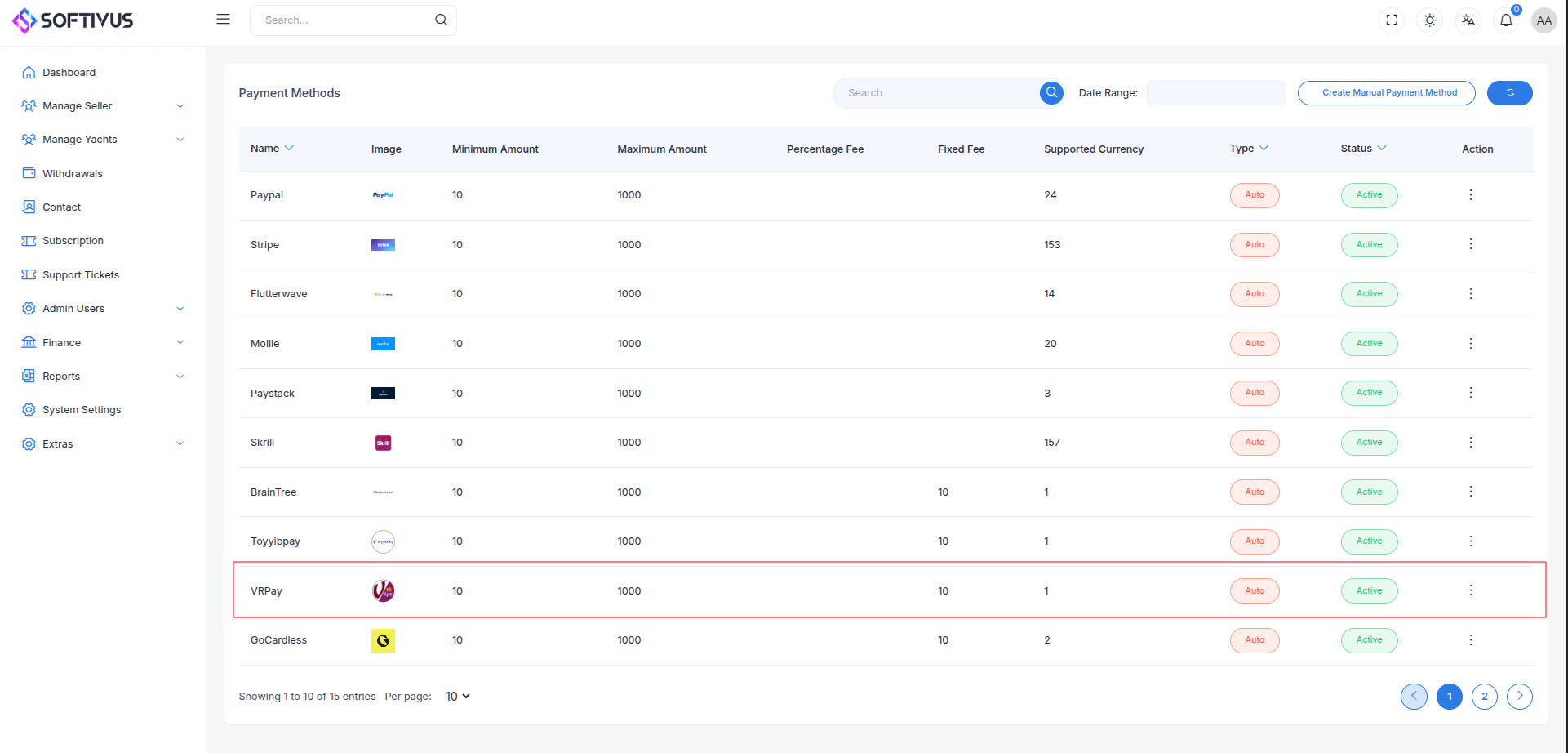
- Fill out the configuration form:
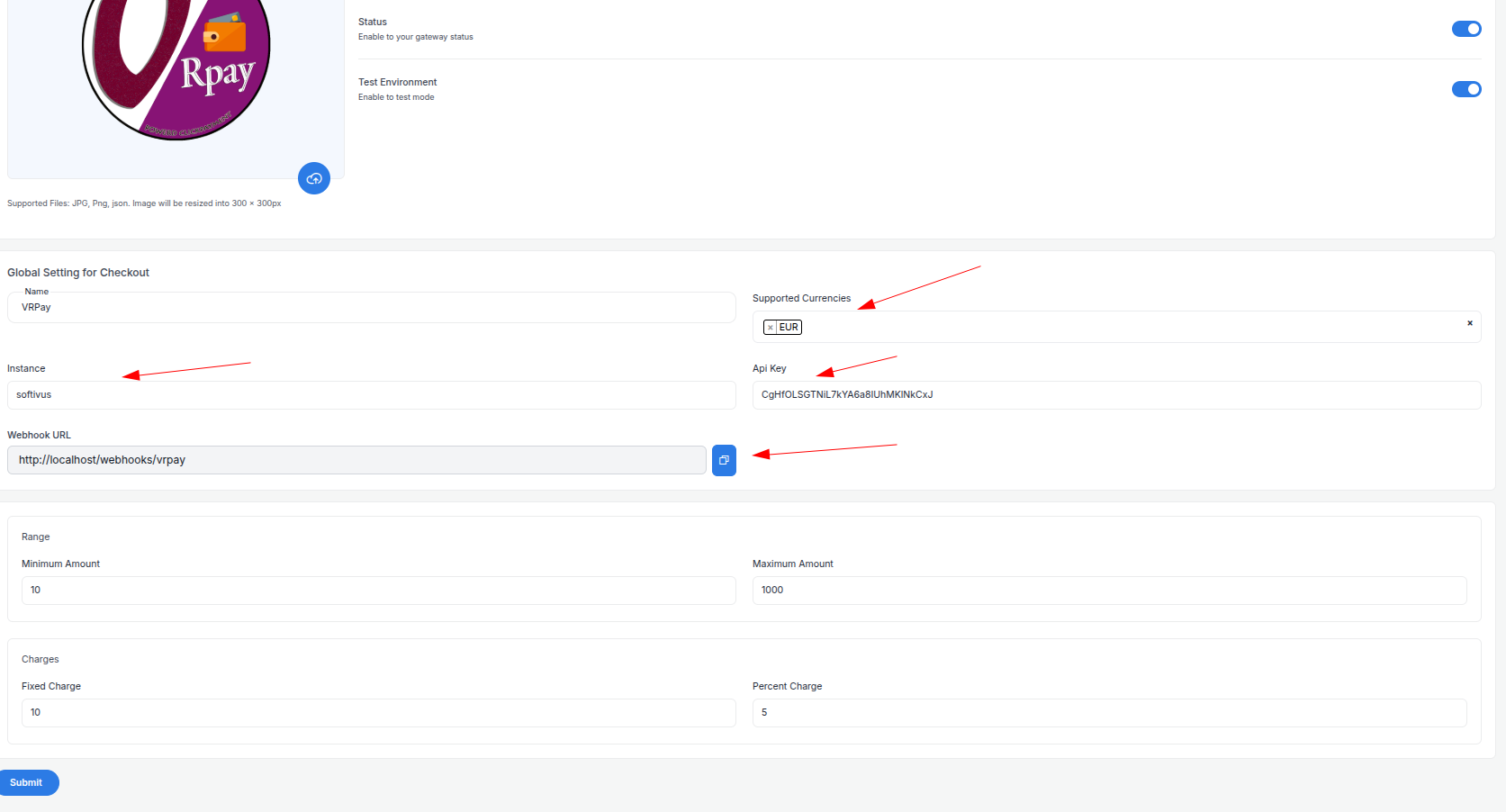
- Detailed Fields:
- Supported Currencies: Select currencies (e.g., EUR, USD) enabled on your VR Payment account. Multi-currency requires separate Entity IDs.
- Active: Toggle “On” to enable VR Payment.
- Live Mode: Toggle “Off” for Sandbox, “On” for live transactions.
- Access Token: Enter your Access Token (e.g.,
your-access-token-123). - Entity ID: Enter your Entity ID (e.g.,
8a8294174b7ecb28014b9699220015ca). - Webhook URL: Copy this URL and paste it into the VR Payment Merchant Portal’s webhook settings.
- Minimum Amount: Set a floor (e.g., €1.00) to avoid micro-transactions.
- Maximum Amount: Set a ceiling (e.g., €10,000) based on your needs.
- Fixed Charge: Add a flat fee (e.g., €0.50) per transaction, if applicable.
- Percentage Charge: Add a percentage fee (e.g., 2%) on top of VR Payment’s fees.
- Click Submit to save. Your VR Payment gateway is now configured.
Step 7: Test the Integration
Test your setup in Sandbox Mode:
- Enable Sandbox Mode:
- In your Admin Panel, ensure Live Mode is off and use Sandbox credentials.
- Access the Sandbox via the Merchant Portal or vrpay.readme.io for API testing.
- Simulate Payments:
- Use VR Payment’s test cards:
- Success:
4111 1111 1111 1111, expiry12/25, CVV123. - Failure:
4000 0000 0000 0002, expiry12/25, CVV123. - Test PayPal or SEPA with Sandbox credentials.
- Verify Webhooks:
- Check your server logs for webhook events (e.g.,
PAYMENT.SUCCESS). - Ensure payment statuses update in your Admin Panel (e.g., “Paid,” “Failed”).
- Debugging: If issues occur, check the Sandbox Portal’s Transactions tab for error codes (e.g., “Declined by Issuer”).
Step 8: Enable Live Mode
After successful testing:
- VR Payment Dashboard:
- Ensure your account is verified and ready for live transactions.
- Log in to the Production Merchant Portal.
- Admin Panel:
- Go to System Settings > Payment Gateways > VR Payment.
- Toggle Live Mode to “On”.
- Confirm your Access Token and Entity ID match live credentials.
- Save the changes.
- Webhook Confirmation: Verify the webhook URL is set in the Production Portal.
Step 9: Go Live
Launch your VR Payment integration:
- Start Accepting Payments:
- Customers can now pay using enabled methods at checkout.
- Monitor initial transactions for issues.
- Live Verification:
- In the Merchant Portal, go to Transactions to track payments in real-time.
- Confirm payouts to your bank account (typically 1-3 business days).
- Troubleshooting:
- If payments fail, review error logs in the Portal or contact support@vr-payment.de.
- Ensure your webhook endpoint remains active.
Additional Tips
- VR Payment Fees: Vary by contract (e.g., 1.9% + €0.25 per card transaction). Contact sales for your rate and adjust charges accordingly.
- Documentation: Refer to the VR Payment Developer Hub for API details, including tokenization and subscriptions.
- Support: Reach out via support@vr-payment.de or the Portal’s help section.
Note:
If you meant a different "VRPay" provider, please clarify with more details (e.g., region, website). Otherwise, if you need further assistance with this VR Payment integration, our support team is here. Contact us at softivus@gmail.com or through the Admin Panel. Let’s get your payments flowing!